Connect your Symplicy form to your MeetLaw calendar
What can you achieve with the integration?
-
Create a smooth, automated workflow so that people who book an appointment are immediately prompted to provide the required information.
-
Better prepare for your meetings by collecting contextual information about your clients, including their name, email address, location, legal issues, and more.
How does the integration work?
-
You share the link to your MeetLaw calendar with your client.
-
The client schedules an appointment via your calendar.
-
Once the appointment is booked, MeetLaw displays (or sends) the confirmation details containing your Symplicy form magic link.
-
Your client clicks the link and completes the form before the appointment.
Steps to configure the Symplicy form link in MeetLaw
Log in to your MeetLaw account, then follow these steps:
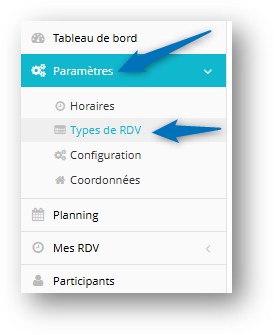
1. Go to the appointment settings
-
Go to the Settings menu.
-
Then click the Appointment Type section.
2. Select the appointment type to edit
-
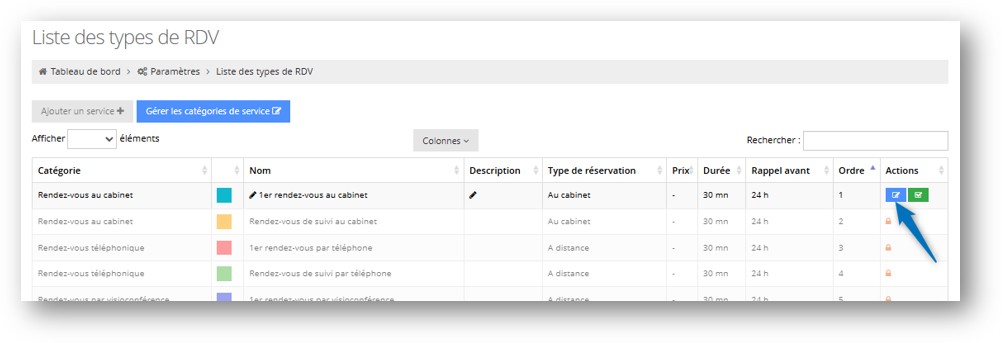
You will see the list of your services (e.g., First appointment, Phone appointment, etc.).
-
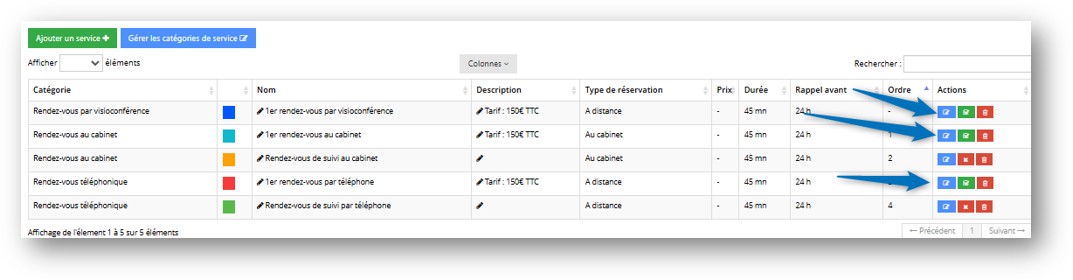
In the “Action” column corresponding to the service you wish to link to the form, click the Edit button (pencil/edit icon).
3. Add your Symplicy magic link
-
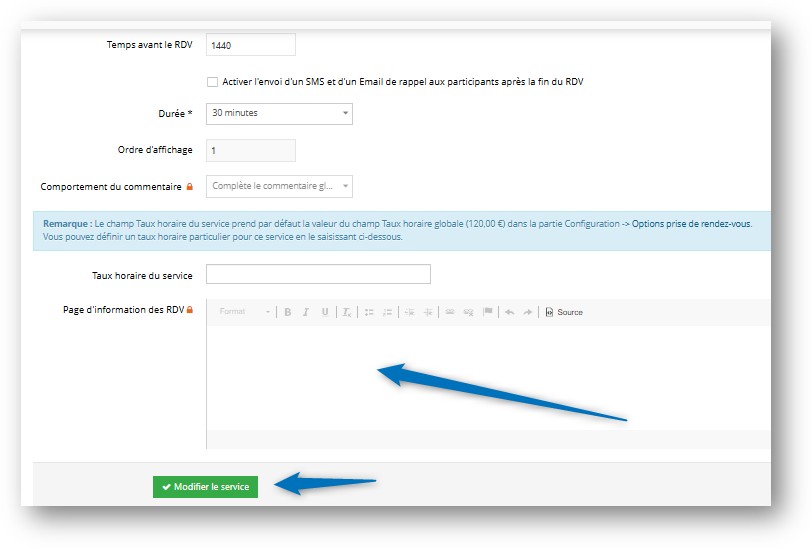
You are now in the “Edit a service” menu.
-
Locate the section titled Appointment information page.
-
In this area, you can add text and a link.
-
Write a short message for your client and paste your Symplicy magic link (we recommend placing here the link to your “Client intake” form).
Example message: “To help us prepare for our meeting, please complete this form via this secure link: [Paste your Symplicy link here].”
4. Save the configuration
-
Once the link has been added, click the Edit service button (or Save) to confirm the changes.
If you offer several appointment types (for example: first appointment by phone, first in-person appointment at the office, follow-up video appointment, etc.), you must repeat this operation for each category.
You will need to complete the Appointment information page with your Symplicy link within each service type listed in your settings.