
The logo
How it works
Lawyers can add their firm’s logo to their Symplicy forms.
The logo is displayed in the top left corner of the form when your client opens it through a link sent by the firm (for example, your magic link).
Your client can then recognise your firm at a glance.
Accessing the Form design page
- Go to the login page: https://app.symplicy.com/
- Log in with your email address and password.
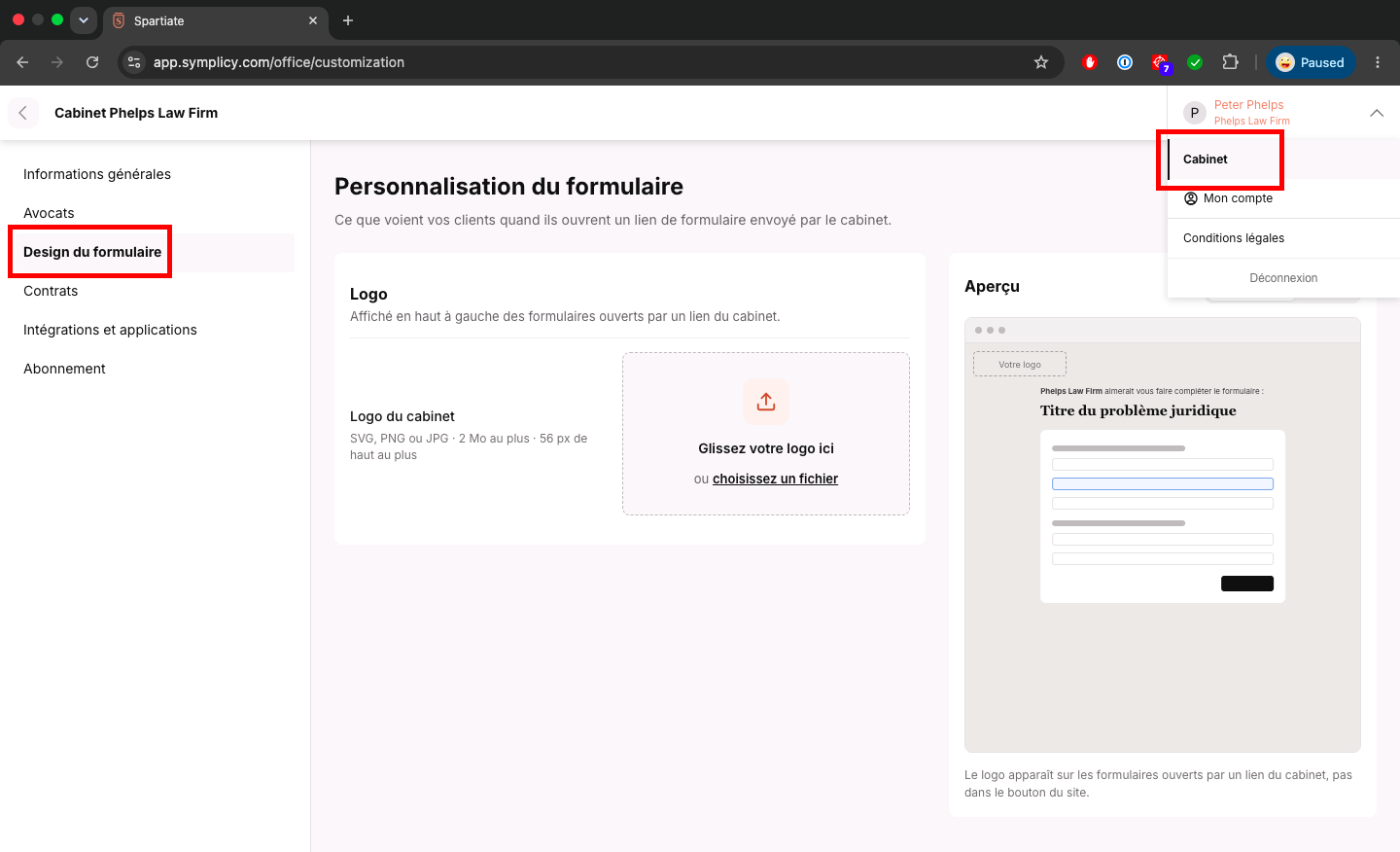
- Click on your name, in the top right corner of the screen.
- The menu opens and shows the “Firm” section. Click on this section.
- In the left-hand menu, select “Form design”.
Importing your logo
Before importing your logo, check that it meets these requirements:
- SVG, PNG or JPG format;
- 2 MB maximum;
- 56 px high maximum.
Tip: ideally, use an SVG or PNG logo with a transparent background. It will blend in better with the form.
- In the “Firm logo” box, drag your file into the “Drag your logo here” area.
- You can also click on “choose a file”, select your logo on your computer, then click on “Open”.
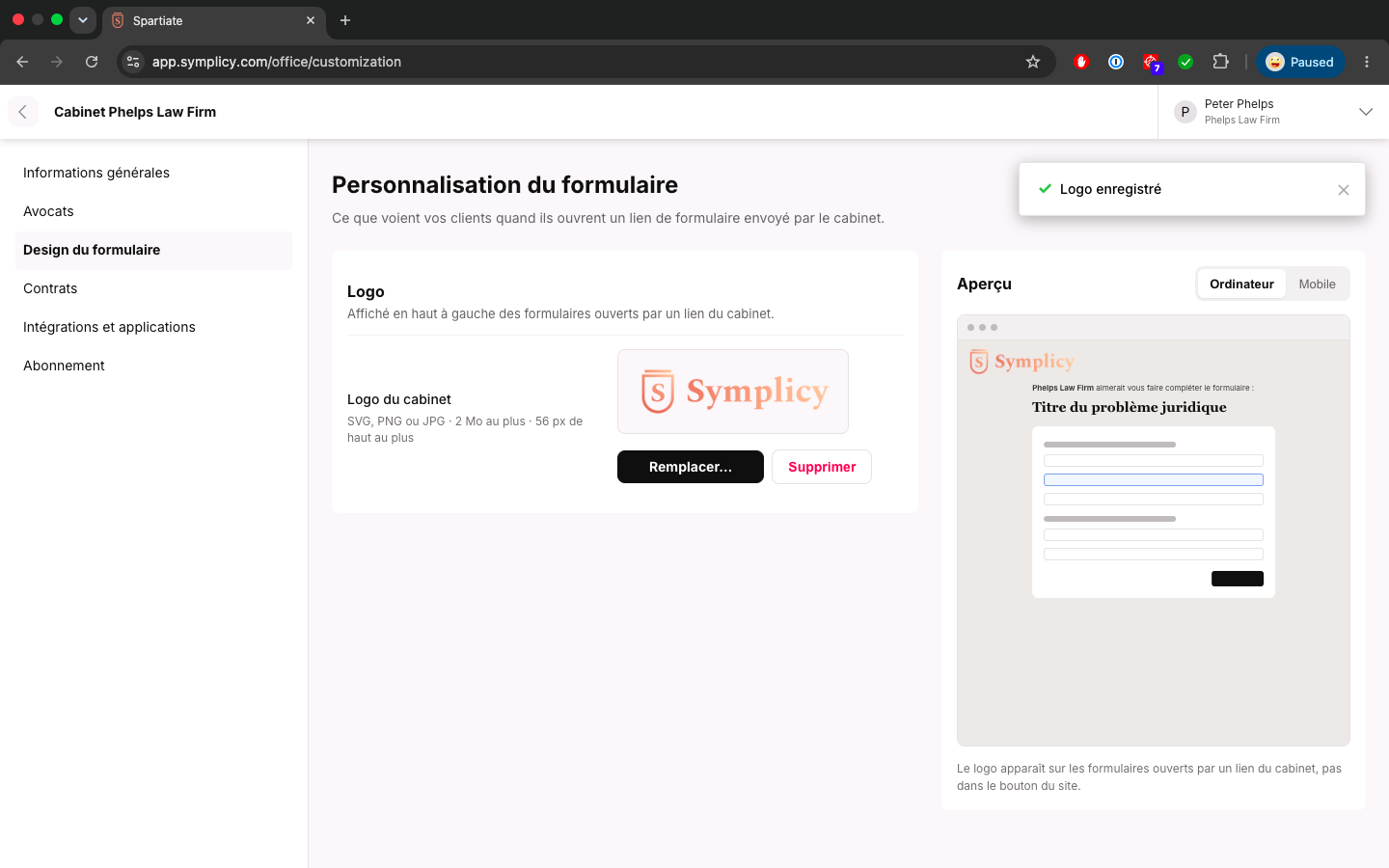
- The message “Logo saved” confirms that your logo now appears on your forms.
Checking how your logo looks
On the right of the screen, the “Preview” box shows what your clients will see.
- Click on “Desktop” to see how it looks on a computer screen.
- Click on “Mobile” to see how it looks on a smartphone.
Tip: check both views. Many of your clients will open your form on their phone.
Replacing or removing your logo
- To change your logo, click on “Replace…” and select the new file.
- To remove your logo, click on “Delete”.
Where does your logo appear?
Your logo appears on forms opened through a link from the firm, for example your magic link shared by email, text message, on LinkedIn or through a QR code.
