
Connect your Symplicy form to your Microsoft Bookings
What can you achieve with the integration?
- End-to-end automation: Create a seamless workflow in which every new appointment automatically triggers your form to be sent.
- Optimal preparation: Collect key information (identity, legal context, documents) even before the meeting begins to improve efficiency.
How does the integration work?
- You share your Microsoft Bookings link.
- Your client selects a time slot and confirms the appointment.
- Microsoft Bookings sends an automatic reminder containing your Symplicy magic link.
- The client completes the form with one click, and you receive the data before the appointment.
Configuration steps in Microsoft Bookings
- To begin, sign in to your Microsoft Bookings interface.
- Go to your “Booking pages”.
- Select the meeting type you wish to configure (e.g., “Legal Consultation at the law firm”).
- In your meeting type form, proceed as follows to configure email reminders:
- Open “Advanced options”.
- Select “Advanced options” and scroll down to locate email reminders.
- Select “Add an email reminder” to open the email reminder configuration form.
- Set the reminder send time, anywhere from 15 minutes up to two weeks before the meeting.
- Add a custom message in the email body, insert the Symplicy magic link, and format the email body as you prefer.
- Select “Save changes” to finalize your email reminder settings.
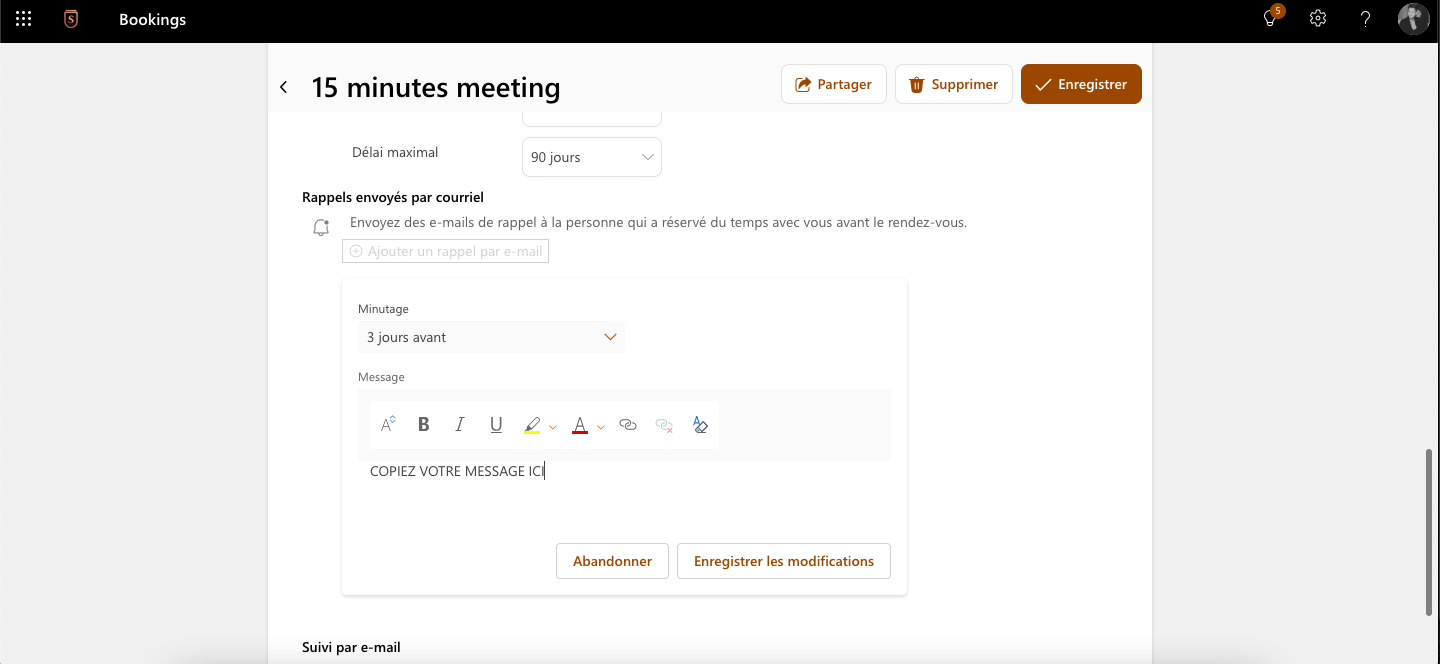
Once these steps are complete, your clients will receive the configured email reminder for appointments scheduled with you.
Recommended reminder message template
Here is sample text to copy and paste into your Microsoft Bookings reminder:
“Hello,
We have an upcoming appointment. To best prepare for our discussion and to comply with my professional obligations, I kindly ask you to complete this confidential form: [Your Symplicy magic link].
This will also allow me to move forward with your matter promptly.
I look forward to seeing you,
[Your Name/Firm].”
